Bank Connection
Coincert can automatically pull transactions and balances from your bank, so you do not have to enter everything by hand. There are three ways to get financial data into the app: connect a bank via direct OAuth, sync Apple Wallet accounts via FinanceKit, or import a file.
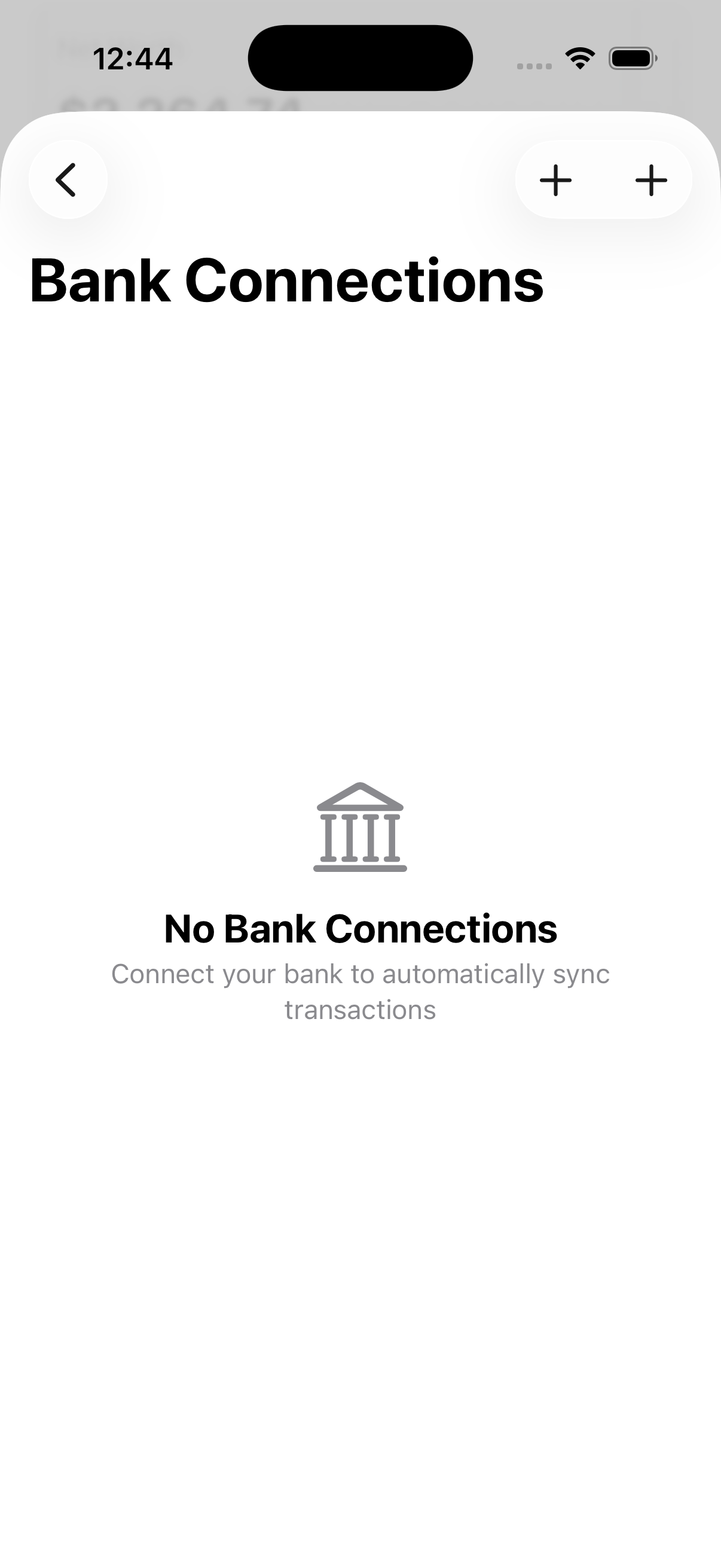
Connect your bank to automatically import and sync transactions.
You can also skip all of these and manage accounts entirely by hand.
Connecting a Bank via Direct OAuth
Coincert connects directly to supported banks using OAuth 2.0 with PKCE. When you connect a bank, you authenticate directly with your bank’s website — Coincert never sees or stores your banking username or password.
How It Works
- Tap “Add Bank” in the Bank Connections screen (Settings > Connections) or during Soundcheck (onboarding).
- Privacy Disclosure — On your very first bank connection, a privacy disclosure sheet appears explaining what data is accessed, what Coincert cannot do, and how your data is used. You must accept this before proceeding. It is shown only once.
- Select your bank — Choose from supported institutions in the provider picker.
- Authenticate with your bank — A secure OAuth window opens where you log in directly with your bank. On iOS, this is presented as an in-app sheet. On macOS, it opens in Safari.
- Account matching — After a successful connection, if you already have manually-created accounts in Coincert, you are shown a matching screen where you can link each bank account to an existing local account or create new ones. If you have no existing accounts, new ones are created automatically.
- Initial sync — Transactions are pulled from your bank immediately after connection.
What Syncs
- Transactions — New transactions appear in Coincert as they are posted by your bank. Pending transactions may not appear until they are finalized.
- Balances — Your official bank balance is stored alongside your Coincert-calculated balance, so you can spot discrepancies.
- Account details — Account name, type (checking, savings, credit card, loan), and last four digits of the account number.
Automatic Transaction Sync
Once connected, transactions sync automatically:
- Foreground sync — Whenever you open Coincert, connected accounts are synced.
- Background sync iPhone — On iOS, Coincert schedules a daily background refresh (approximately every 24 hours) to pull new transactions even when the app is not open.
The sync status for each connection is visible in the Bank Connections list. A green checkmark means the connection synced within the last hour. An orange clock means it has been longer since the last sync.
Re-authentication
Bank connections occasionally expire. When your bank requires you to re-authenticate (for example, after changing your password or due to a security policy), Coincert shows a warning status on the affected connection.
To re-authenticate:
- Go to Settings > Connections.
- Long-press (or right-click on Mac) the affected connection.
- Choose Reconnect.
- You will be taken through the OAuth authentication flow again. No data is lost — your existing transactions remain intact.
Disconnecting a Bank
You can disconnect a bank at any time:
- Go to Settings > Connections.
- Swipe left on the connection (or right-click > Disconnect on Mac).
- A confirmation sheet appears with two options:
- Keep transaction history (default) — The connection is removed, but all synced transactions remain in Coincert. The linked accounts are converted to manual accounts that no longer auto-sync.
- Delete transaction history — The connection is removed and all transactions, splits, tags, and notes associated with those accounts are permanently deleted. This cannot be undone.
Apple Wallet Integration (FinanceKit) iPhone
On iOS 17.4 and later, Coincert can connect directly to Apple Wallet accounts — Apple Card, Apple Savings, and Apple Cash — using Apple’s FinanceKit framework. This is free and does not require a subscription.
How It Works
- When you tap “Add Bank” and select an Apple financial service (Apple Card, Apple Savings, or Apple Cash), Coincert detects this and uses FinanceKit instead of OAuth.
- iOS presents a system permission dialog asking you to authorize Coincert to access your Apple financial data.
- Once authorized, your Apple Wallet accounts are imported and transactions begin syncing.
FinanceKit uses incremental history tokens, meaning each sync only fetches changes (new, updated, or deleted transactions) since the last sync — keeping syncs fast and efficient.
Note: FinanceKit is not available on macOS or iPadOS.
Manual Account Management
If you prefer not to connect to a bank, you can create and manage accounts manually:
- Add accounts with a name, type (checking, savings, credit card, loan, BNPL), and starting balance.
- Enter transactions by hand using the Add Transaction button on the Dashboard or in the Account Register.
- Manual accounts work with all Coincert features: Liner Notes, Setlist (budgets), Auto-Tune (categorization), and Harmony Sync (iCloud sync).
Manual and connected accounts can coexist. For example, you might connect your primary checking account via OAuth and manually track a cash envelope or side fund.
Import from File
You can import transactions from files exported by your bank or other financial software. Coincert supports four file formats:
Supported Formats
| Format | Extension | Description |
|---|---|---|
| CSV | .csv | Comma-separated values. Most banks and apps can export this format. |
| OFX | .ofx | Open Financial Exchange. A standard used by financial institutions. |
| QFX | .qfx | Quicken Financial Exchange. Essentially the same as OFX with minor Quicken-specific additions. |
| Bank statement PDFs. Coincert extracts transactions using text extraction or OCR for scanned documents. |
Import Flow
CSV Import
- Open an account and choose Import Transactions.
- Select a CSV file from your device.
- Column Mapping — Coincert auto-detects which columns are the date, payee, amount, and memo. You can adjust the mappings manually if the auto-detection is incorrect. A live preview of the first five rows shows color-coded columns so you can confirm the mapping.
- Date Format — Select the date format used in your file (MM/dd/yyyy, dd/MM/yyyy, yyyy-MM-dd, or M/d/yyyy).
- Preview — Review the parsed transactions before importing. Potential duplicates are flagged with an orange warning icon.
- Import — Tap “Import N Transactions” to add them to your account. Imported transactions are automatically categorized by Auto-Tune.
OFX / QFX Import
- Open an account and choose Import Transactions.
- Select an OFX or QFX file.
- Preview — Because OFX/QFX files have a standardized structure, the column mapping step is skipped. You go directly to the transaction preview. If the file includes a ledger balance, it is used to set the account balance accurately.
- Import — Same as CSV.
Duplicate Detection
When importing into an account that already has transactions, Coincert automatically scans for potential duplicates. Flagged transactions are highlighted in orange in the preview and marked as potential duplicates after import. You can review and resolve them in the Echo Detection screen.
Reconciliation
Beyond simple file import, Coincert offers a full Bank Statement Reconciliation wizard that compares an imported statement against your existing ledger. The reconciliation flow auto-matches transactions, lets you resolve discrepancies, and verifies that your adjusted balances agree with the bank. This is accessible from the Account Register toolbar via the Reconcile button.
Privacy and Security
Coincert is designed so that your financial credentials never pass through Coincert’s servers:
- OAuth 2.0 + PKCE — You authenticate directly with your bank through their certified OAuth interface. Your banking username and password are transmitted only between your device and your bank’s servers using 256-bit encryption.
- Access tokens — After connecting, your bank issues OAuth access and refresh tokens (not your bank credentials). These tokens are stored in your device’s secure Keychain, not in Coincert’s database.
- On-device AI — All transaction categorization and analysis happens on your device. Transaction data is never sent to external servers for processing.
- iCloud encryption — When Harmony Sync is enabled, all financial data is encrypted with iCloud end-to-end encryption before leaving your device.
- No data sales — Coincert never sells or shares your financial data with third parties.
- Read-only access — Bank connections can read your account balances, transaction history, and account information. They cannot move money, change account settings, or access your credentials after the initial OAuth connection.
You can revoke access at any time by disconnecting in Coincert (Settings > Connections).