Crescendo Fund
A Crescendo Fund is a dedicated savings goal that helps you set aside money for a specific expense by a specific date. Whether it is an annual insurance premium, a holiday trip, or a new appliance, a Crescendo Fund calculates exactly how much you need to save each month and tracks your progress in real time.
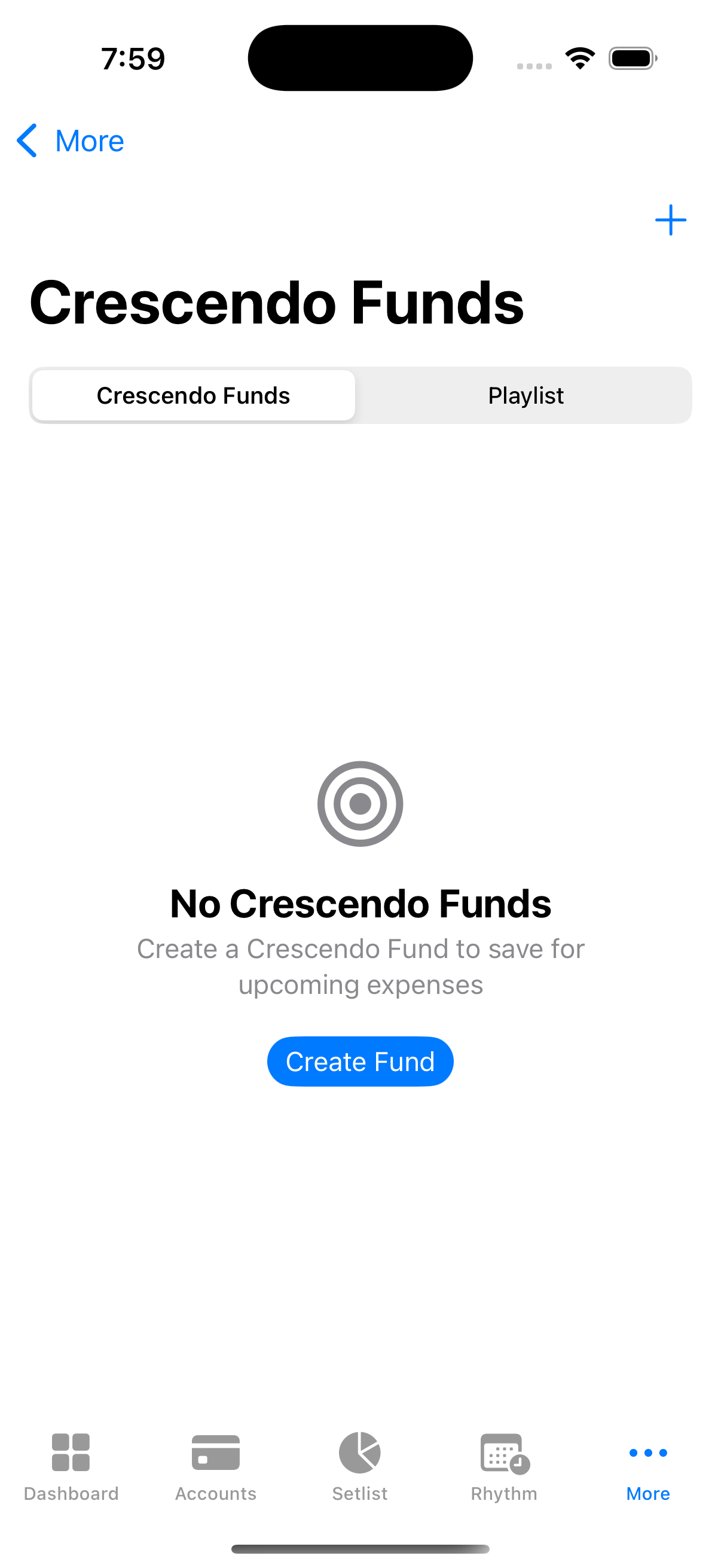
Create Crescendo Funds to save toward goals with progress tracking and target dates.
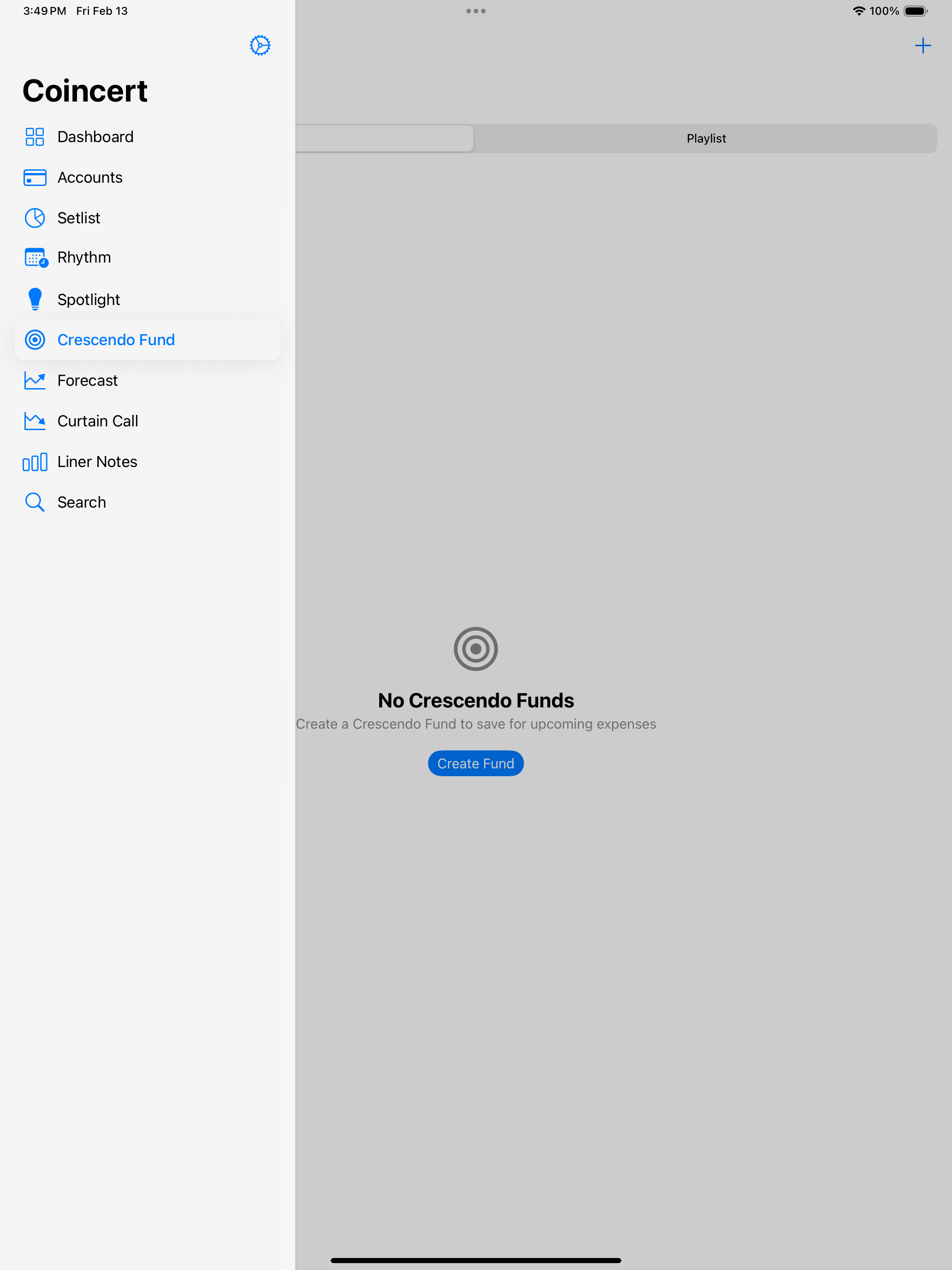
On iPad, the Crescendo Fund screen uses a split-view layout with sidebar navigation on the left and savings goal tracking on the right.
The concept is sometimes called a “sinking fund” in personal finance — a planned, gradual accumulation of money so that a large expense does not catch you off guard.
How It Works
- You name the fund, set a target dollar amount, and choose a deadline.
- Coincert automatically calculates the required monthly allocation (target amount divided by months remaining).
- You optionally link a savings account so progress is tracked automatically from the account balance.
- A progress ring fills as you get closer to your goal.
- When the linked account balance reaches or exceeds the target, a Standing Ovation celebration plays.
Creating a Crescendo Fund
Tap the + button on the Crescendo Funds screen to open the creation form. The form has the following fields:
| Field | Required | Description |
|---|---|---|
| Name | Yes | A short label for the goal (e.g., “Car Insurance”, “Summer Vacation”). |
| Target Amount | Yes | The total dollar amount you want to save. |
| Deadline | Yes | The date by which you need the money. Must be in the future. Defaults to 6 months from today. |
| Linked Account | No | A savings account whose balance represents your progress. If set to “None”, progress is tracked manually. Only active savings-type accounts are shown. |
| Recurring | No | Toggle this on if the expense repeats on a regular cycle (monthly, quarterly, semi-annual, or annual). After you reach the goal, you can reset the fund for the next cycle instead of creating a new one. |
| Categories | No | Optionally associate expense categories with the fund for reporting. |
After filling in the fields, tap Save. The monthly allocation is displayed on the form in real time as you adjust the target amount and deadline. If the deadline is less than 30 days away, the display changes to show the total amount due instead of a monthly figure.
Monthly Allocation
Coincert automatically computes how much you need to set aside per month:
Monthly Allocation = Target Amount / Months RemainingMonths remaining uses day-precision calendar math (days until deadline divided by 30.44, the average days per month) to avoid errors around month boundaries. The allocation updates dynamically as time passes, so it always reflects the current pace required.
The monthly allocation is shown:
- On the creation/edit form as you adjust values.
- In the fund list, on the right side of each active fund row.
- On the fund detail screen in the stats section.
Progress Tracking
With a Linked Account
When a fund is linked to a savings account, Coincert tracks progress automatically:
- Progress ring: A circular progress indicator fills from 0% to 100% as the account balance approaches the target. The ring appears in both the list view and the detail view (where it is displayed larger).
- Amount display: Below the progress ring, you see the current account balance and the target (e.g., “$400.00 of $1,200.00”).
- Behind-pace indicator: If your progress falls more than 5% behind where it should be based on elapsed time, a warning card appears on the detail screen with the message “Slightly Behind Pace” and a suggestion to increase your monthly allocation or extend the deadline.
Without a Linked Account (Manual Tracking)
If no account is linked, the fund row shows a manual tracking icon instead of a progress ring. You can still see the target amount and days remaining, but automatic progress calculation is not available.
Standing Ovation
A Standing Ovation is Coincert’s celebration animation that plays when a Crescendo Fund reaches 100% completion — that is, when the linked account balance meets or exceeds the target amount.
When triggered, a full-screen overlay appears with:
- A themed icon (varies by intensity setting).
- The headline “Standing Ovation!” followed by a personalized message naming the fund (e.g., “You saved up for Car Insurance!”).
- A confetti animation (unless the user has selected the subtle intensity or has Reduce Motion enabled).
- An “Awesome!” button to dismiss.
Celebration Intensity
You can control the celebration experience in Settings. Three levels are available:
| Level | Icon | Confetti | Animation |
|---|---|---|---|
| Subtle | Green checkmark | None | Bounce only |
| Moderate (default) | Gold star | 40 pieces | Spring + confetti |
| Celebration | Green banknote | 100 pieces, larger radius | Spring + full confetti |
If the Reduce Motion accessibility setting is enabled on your device, all motion animation is suppressed regardless of the intensity level. The celebration content still appears but without transitions or confetti.
Dismissing the celebration: tap the dimmed background area or press the “Awesome!” button.
Fund Detail Screen
Tapping a fund in the list opens its detail screen, which includes:
- Large progress ring (or manual tracking indicator).
- Behind-pace card (if applicable).
- Stats: Monthly allocation, days remaining, and start date.
- Linked account card: Shows the account name and current balance.
- Recurring info (if the fund is recurring): Shows the recurrence interval and how often the fund resets (e.g., “Resets every 6 months”).
- Completion section (if the fund is complete): Shows the completion date and, for recurring funds, a “Reset for Next Cycle” button.
An Edit button in the toolbar opens the same form used during creation, pre-filled with the fund’s current values.
Editing a Crescendo Fund
Tap Edit on the fund detail screen. You can change the name, target amount, deadline, linked account, recurring interval, and categories. Tap Update to save. Changes sync to iCloud automatically.
Deleting a Crescendo Fund
You can delete a fund in two ways:
- Swipe left on the fund row in the list and tap Delete.
- From the delete confirmation dialog: “Are you sure you want to delete this Crescendo Fund?”
Deletion is permanent and syncs across all your devices via iCloud.
Archiving a Crescendo Fund
If you want to remove a fund from the active list without deleting it, swipe left and tap Archive. Archived funds move to the Completed section.
Recurring Funds
For expenses that repeat (e.g., annual car insurance), enable the Recurring toggle and select an interval:
| Interval | Cycle Length |
|---|---|
| Monthly | 1 month |
| Quarterly | 3 months |
| Semi-Annual | 6 months |
| Annual | 12 months |
When a recurring fund is completed, it appears in the Completed section with a Reset swipe action. Resetting clears the completion date, sets a new start date to today, and un-archives the fund so you can begin saving for the next cycle. You can also reset from the detail screen using the “Reset for Next Cycle” button.
Multiple Active Goals
You can have up to 10 active Crescendo Funds at a time. If you try to create an 11th, an error message appears asking you to complete or archive an existing fund first. There is no limit on completed or archived funds.
Dashboard Summary
The Crescendo Funds list screen includes a summary header at the top showing:
- Active goal count: e.g., “3 goals”.
- Total saved vs. total target: e.g., “$2,400.00 of $5,000.00 saved”. This sums the linked account balances across all active funds and compares them to the combined target amounts.
This summary gives you a quick snapshot without needing to open each fund individually.
Platform Differences
iPhone iPad
- The fund detail screen uses a large navigation title.
- Account and interval pickers use the navigation-link picker style (tap to drill into a selection screen).
- The create/edit form keyboard uses a decimal pad for the target amount field.
Mac
- Navigation titles use the standard macOS inline style.
- Account and interval pickers use the default macOS picker style (dropdown menus).
- The decimal pad keyboard type is not applicable; standard text input is used for the target amount.
Accessing Crescendo Funds
Crescendo Funds are located in the Savings tab. At the top of the Savings tab, a segmented control lets you switch between Crescendo Funds and Playlist (subscription tracking). Select “Crescendo Funds” to view your savings goals.