Curtain Call — Debt Payoff Planning
Curtain Call is Coincert’s debt payoff planner. It helps you build a structured plan to eliminate your debts, compare payoff strategies, simulate the impact of extra payments, and track your progress toward becoming debt-free.
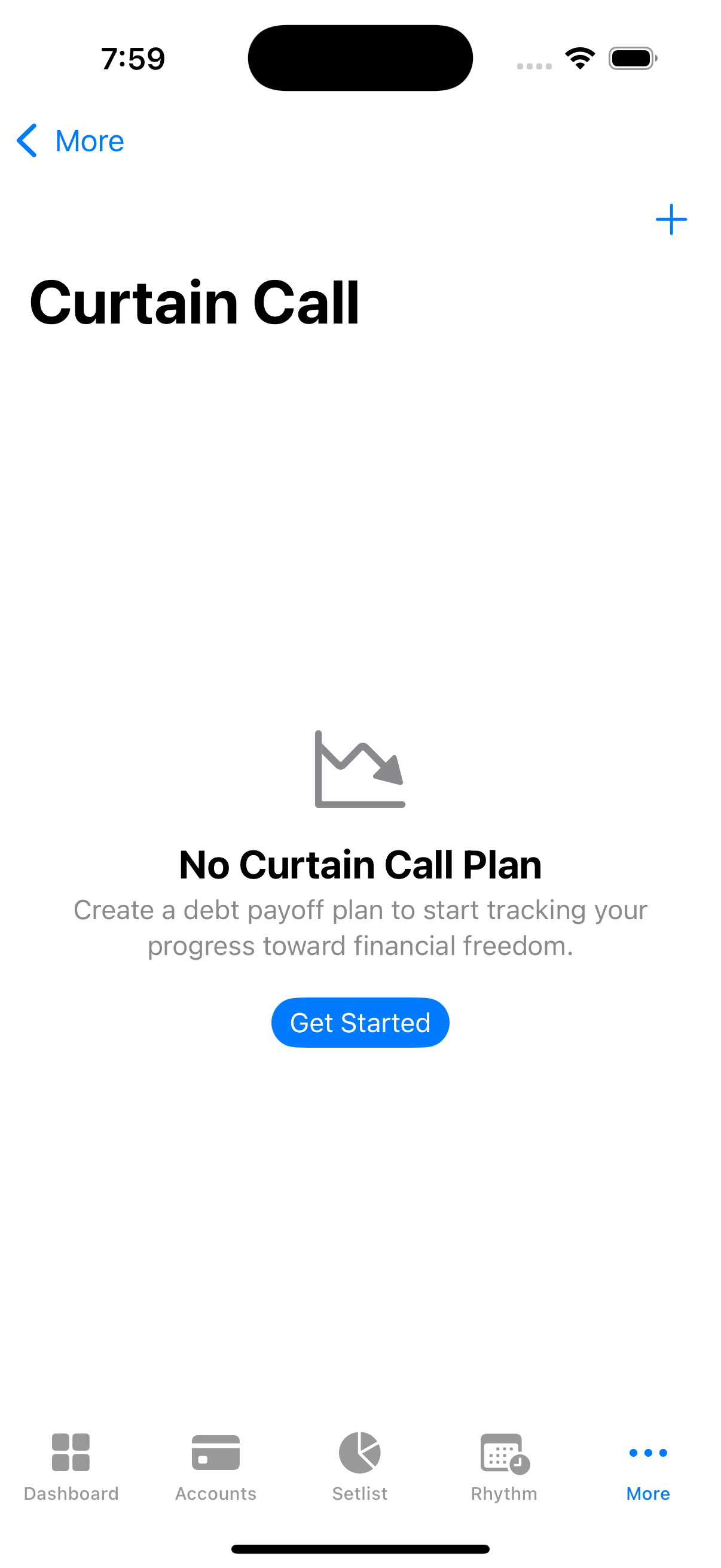
Plan your path to debt freedom with snowball or avalanche strategies. Track progress with visual milestones.
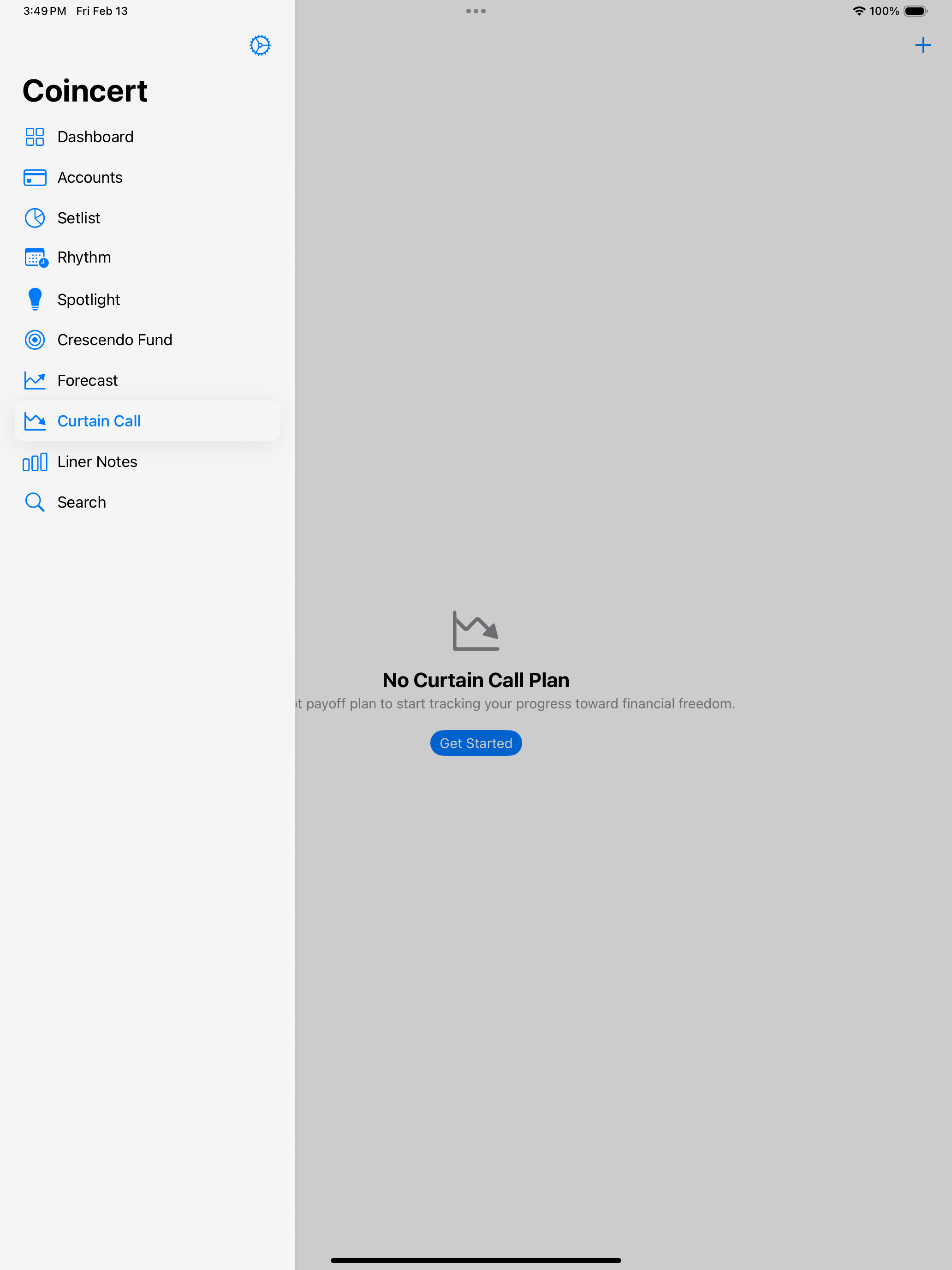
On iPad, the Curtain Call screen uses a split-view layout with sidebar navigation on the left and debt payoff planning on the right.
Table of Contents
- Debt Payoff Strategies
- Setting Up a Curtain Call Plan
- Encore Payments
- Viewing the Payoff Schedule
- Progress Tracking
- Remix — What-If Simulator
- Remix Comparison — Side-by-Side Scenarios
- Editing the Plan
- Dashboard Overview
- Platform Differences
Debt Payoff Strategies
Curtain Call supports two proven debt payoff strategies. Both require you to make minimum payments on all debts each month; the difference is where the extra payment goes.
Snowball
Pay off your smallest balance first. Once that debt is eliminated, roll its minimum payment into the next-smallest debt. This approach gives you quick wins early on, which can be motivating.
- Best for: Staying motivated with visible progress.
- Trade-off: May cost slightly more in total interest compared to Avalanche.
Avalanche
Pay off your highest interest rate first. Once that debt is eliminated, roll its minimum payment into the next-highest-rate debt. This approach minimizes the total interest you pay over time.
- Best for: Saving the most money on interest.
- Trade-off: The first debt to be eliminated may take longer, since it might have a large balance.
When the two strategies produce very similar results (less than $50 difference in total interest and within 3 months of each other), Coincert tells you that both strategies are comparable and you should choose based on personal preference.
Setting Up a Curtain Call Plan
Navigate to the Curtain Call screen and tap New Plan (or Get Started if this is your first plan).
Step 1: Name Your Plan
Give your plan a descriptive name (e.g., “2026 Debt Payoff” or “Credit Card Crackdown”).
Step 2: Add Your Debts
You can add debts in two ways:
Add Manually:
- Tap Add Debt.
- Enter the debt details:
- Name — A label for this debt (e.g., “Chase Sapphire”).
- Current Balance — The amount you owe right now.
- APR — The annual percentage rate.
- Minimum Payment — Your required monthly minimum.
- Minimum Payment Type — Choose between:
- Fixed — A set dollar amount each month.
- Percentage of Balance — A percentage of the outstanding balance with a minimum floor (common for credit cards, e.g., 2% of balance with a $35 floor).
- Optionally: lender name, account number, due day, and notes.
- Tap Save.
Import from Accounts:
If you already have liability accounts in Coincert (credit cards, loans), they appear under Import from Accounts in the debt setup. Tap any account to pre-fill its name, balance, and type. You can then adjust the APR and minimum payment before saving.
Step 3: Include Intermission Plans (Optional)
If you have active Intermission (BNPL) plans, they appear in an Intermission Plans section. Toggle each one on or off to include it in your Curtain Call plan. Intermission payment amounts are automatically converted to monthly equivalents based on the provider’s payment interval.
Step 4: Set Your Encore Payment
Enter an Encore Payment amount — this is the extra money you can put toward debt each month, beyond the sum of all minimum payments. Even a small amount makes a significant difference over time. See the Encore Payments section for details.
Step 5: Choose Your Strategy
Once you have added at least one debt, Coincert calculates and displays a side-by-side comparison of the Snowball and Avalanche strategies. Each strategy card shows:
- Debt Free By — The projected payoff date.
- Total Months — How many months until all debts are eliminated.
- Total Interest — The cumulative interest you would pay.
- A Recommended badge on the strategy that the engine determines is better for your situation.
Below the cards, a summary highlights:
- How many months faster one strategy is than the other.
- How much interest one strategy saves compared to the other.
Tap a strategy card to select it. You can also toggle between optimizing for Fastest payoff or Most savings using the segmented control.
Step 6: Save
Tap Save to create your plan. Coincert begins tracking your progress immediately.
Encore Payments
An Encore Payment is any extra money you put toward your debts beyond the required minimum payments. There are two types:
Monthly Encore Payment
Set during plan setup (or adjusted later), this is a recurring extra amount applied each month to your target debt (the debt prioritized by your chosen strategy). As debts are paid off, their freed-up minimum payments are automatically rolled into the extra payment pool — this is the “snowball” or “avalanche” effect.
One-Time Encore Payment (Windfall)
A lump-sum payment applied on a specific date. Tax refunds, bonuses, or other windfalls can be simulated in the Remix to see their impact on your timeline. Enter the amount and the date you expect to receive the funds, then tap Simulate Windfall.
Viewing the Payoff Schedule
The Curtain Call dashboard includes an expandable Payoff Timeline chart that projects your monthly debt balances over time. The chart shows each debt’s balance declining month by month until all debts reach zero.
The payoff schedule is calculated using standard amortization formulas:
- Monthly interest:
balance x (APR / 12 / 100) - Dynamic minimums (for percentage-of-balance debts):
max(balance x percentage, floor amount)
The calculation engine uses Decimal arithmetic throughout to avoid floating-point rounding errors in financial projections. A safety limit of 360 months (30 years) prevents infinite loops on very large or very low-interest debts.
Progress Tracking
The Curtain Call dashboard displays six key metrics in a grid:
| Metric | Description |
|---|---|
| Remaining | Total balance remaining across all debts in the plan. |
| Paid Off | Total amount paid off, with a percentage indicator. |
| Interest Saved | Projected total interest savings compared to making only minimum payments. |
| Debts Eliminated | How many debts have been fully paid off out of the total (e.g., “2 of 5”). |
| Months Ahead | How many months ahead of schedule you are versus a minimum-payments-only approach. |
| Payment Streak | Consecutive months you have made your planned payment. |
Countdown Card
At the top of the dashboard, a hero card displays:
- Curtain Call By [Month Year] — Your projected debt-free date.
- A progress ring showing the overall completion percentage.
- Months to go — A countdown to the target date.
Individual Debt Progress
Below the metrics grid, each debt in your plan has its own progress row showing:
- The debt name and current balance (or “Paid Off!” if eliminated).
- A progress bar showing how much of the original balance has been paid.
- The original balance and percentage paid.
Remix — What-If Simulator
The Remix simulator lets you explore hypothetical payment scenarios without changing your actual plan. Access it by tapping Remix Scenarios on the Curtain Call dashboard.
Current Plan Baseline
The Remix screen begins with a Current Plan card showing your baseline: the debt-free date, total months, and total interest under your existing plan.
Simulating Extra Monthly Payments
Choose a preset amount from the pill buttons (the app offers common increments) or enter a custom amount. Tap Apply to calculate the impact. The simulator instantly recalculates your payoff schedule with the extra monthly payment and displays an impact summary.
Simulating a One-Time Encore Payment (Windfall)
Enter a lump-sum amount and a date, then tap Simulate Windfall. This models a one-time extra payment (e.g., a tax refund) applied on the specified date.
Impact Summary
After running a simulation, the Your Impact card shows:
- Months saved — How many months earlier you would be debt-free.
- Percent faster — The percentage reduction in payoff time.
- Interest saved — The dollar amount of interest avoided.
- New debt-free date — The revised projected payoff date.
Saving Scenarios
You can save up to 3 scenarios for later comparison:
- Run a simulation (extra monthly payment, windfall, or both).
- Enter a name in the Save This Scenario section (e.g., ”+$200/month” or “Tax refund April”).
- Tap Save.
Each saved scenario records the extra monthly payment amount, one-time payment amount, projected payoff date, and projected interest savings.
To delete a saved scenario, tap the trash icon next to it.
Remix Comparison — Side-by-Side Scenarios
Select 2 or more saved scenarios by tapping the circle next to each one, then tap Compare Selected Scenarios to open the Remix Comparison view.
The comparison displays a grid with one column per scenario:
| Row | Description |
|---|---|
| Encore/Month | The extra monthly payment in this scenario. |
| One-Time | The one-time lump-sum payment, if any. |
| Debt Free | The projected debt-free date. |
| Interest Saved | Total interest savings compared to the baseline. |
| Months Faster | How many months faster than the current plan. |
Insights
Below the comparison grid, an Insights card highlights:
- Best for savings — Which scenario saves the most interest, and by how much.
- Fastest payoff — Which scenario gets you debt-free earliest.
A Current Plan Baseline card at the bottom shows the reference point: debt-free date and total interest under the existing plan without extra payments.
Editing the Plan
To adjust your existing Curtain Call plan:
- Tap Adjust Plan on the dashboard.
- The plan setup screen opens with your current debts, strategy, and Encore Payment pre-filled.
- Make changes — add or remove debts, change the strategy, adjust the Encore Payment, toggle Intermission plans.
- Tap Save to update.
The strategy comparison recalculates automatically whenever you add, remove, or modify debts.
Dashboard Overview
The Curtain Call dashboard is the central hub for your debt payoff journey. From top to bottom, it shows:
- Countdown Card — Projected debt-free date with progress ring.
- Progress Metrics Grid — Six key metrics (remaining, paid off, interest saved, debts eliminated, months ahead, payment streak).
- Payoff Timeline — An expandable chart projecting monthly balance changes.
- Your Debts — Individual progress rows for each debt.
- Remix Scenarios — Link to the What-If simulator.
- Adjust Plan — Link to edit your plan settings.
Platform Differences
iOS and iPadOS iPhone iPad
- The dashboard uses a vertical scrolling layout.
- The Payoff Timeline chart is inside a collapsible disclosure group — tap to expand or collapse.
- Pull-to-refresh reloads the dashboard data.
- The numeric keyboard appears for payment amount fields in plan setup and the Remix simulator.
macOS Mac
- The dashboard uses a split view (HSplitView): summary, metrics, debts, and actions on the left; the Payoff Timeline chart on the right, always visible.
- The chart panel has a minimum width of 400 points for comfortable viewing.
- Amount fields use standard text input (no numeric keyboard).
- The Payoff Timeline is not collapsible — it is permanently displayed in the right pane.