Dashboard
The Dashboard is the home screen of Coincert, providing a scrollable overview of your complete financial picture. Every widget is a live snapshot — balances, budgets, forecasts, and alerts update automatically as data changes.

The Dashboard provides a complete financial overview with net worth, account summaries, budget status, and forecast at a glance.

On iPad, the Dashboard uses a split-view layout with sidebar navigation on the left for quick access to all sections and the full financial overview on the right.
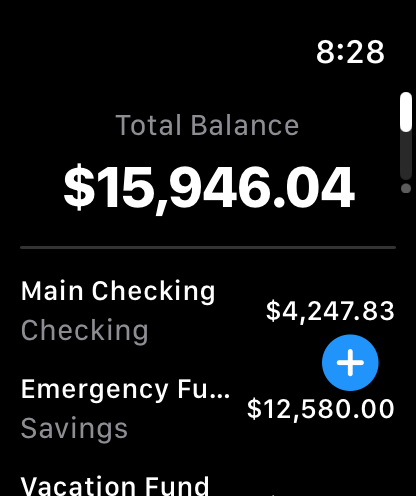
The Apple Watch companion app provides quick account access and transaction entry from your wrist.
Platform Layout
iPhone iPad
A single-column scrollable layout with a floating action button (FAB) in the bottom-right corner for quick transaction entry. Tapping most widgets navigates directly to the relevant tab (Accounts, Setlist, Spotlight, Rhythm, Curtain Call, or Crescendo Fund).
Mac
A two-column side-by-side layout. The left column shows account balances (Net Worth, Cash, Credit, Loans). The right column shows Setlist summary, Spotlight, Forecast, Rhythm, Intermission, Curtain Call progress, and Harmony Sync status. The Add Transaction button is in the toolbar instead of a floating button.
Toolbar iPhone
| Button | Location | Action |
|---|---|---|
| Search (magnifying glass) | Top-left | Opens the global transaction search |
| Settings (gear) | Top-right | Opens app settings |
Adding a Transaction
iPhone iPad: Tap the floating + button in the bottom-right corner. Mac: Click the + button in the toolbar.
If you have a single account, the Add Transaction form opens immediately for that account. If you have multiple accounts, an account picker appears first so you can choose which account the transaction belongs to.
Widgets
Widgets appear in a fixed order. Some only appear when relevant data exists (e.g., the Echo Detection alert only shows when unresolved duplicates are detected). Each widget is described below in display order.
Missed Notifications (Marquee)
Appears: Only when notification delivery is set to “On Open Only” mode and there are undelivered notifications.
Shows cards for notifications you missed while the app was closed — Rhythm reminders, Setlist Cues, Off-Key warnings, Pitch Alerts, and more. Each card shows the notification title, message, relative time, and a category-specific icon. You can dismiss individual cards or tap “Dismiss All” to clear them.
Echo Detection Alert
Appears: Only when potential duplicate transactions are detected.
An orange-highlighted banner showing how many transactions may be duplicated. Tap the banner to open the Echo Detection resolution screen where you can review each pair side-by-side and decide to merge, keep both, or dismiss. A “Dismiss All” button marks all flagged pairs as non-duplicates.
Net Worth
Always visible at the top of the dashboard. Shows three figures:
- Net Worth — assets minus liabilities, displayed in large bold text. Turns red if negative.
- Assets — total balance of checking, savings, and other non-liability accounts (green).
- Liabilities — total balance of credit cards, loans, and Intermission accounts (red).
Only active (non-hidden) accounts are included in the calculation.
Account Groups
Accounts are displayed in up to three grouped widgets:
| Group | Includes | Appears |
|---|---|---|
| Cash Accounts | Checking and Savings accounts | Always |
| Credit Cards | Credit card accounts | Only if you have credit cards |
| Loans | Loan and Intermission-type accounts | Only if you have loans |
Each group shows the individual account names, institutions, balances, and a group total.
iPhone iPad: Tapping a group navigates to the Accounts tab.
Setlist Summary
Shows your overall Setlist (budget) health for the current period:
- A circular gauge showing total spending as a percentage of total Setlist (turns red when over budget)
- Total Setlist, Spent, and Remaining amounts
- If you have 3 or fewer active Setlists, each one is listed with its individual spent/limit figures
If no Setlists are configured, shows a prompt: “Create budgets to track spending.” Tapping navigates to the Setlist tab.
Spotlight Preview
Previews AI-generated spending insights and Off-Key detection:
- A badge count showing the total number of active Spotlights
- A preview of the top Spotlight with its type icon and title
- A “View all spotlights” link to the full Spotlight dashboard
Spotlight types include:
- Off-Key — unusual spending detected in a category
- Pattern Detected — recurring spending behavior identified
- New Playlist Item — a potential new subscription detected
- Cue — a Setlist is at risk of being exceeded
Each Spotlight card on the full dashboard can be expanded to show charts, merchant tags, and suggested actions.
Forecast Preview
A compact forecast showing where your balance is headed:
- Current balance (now) and projected balance (at the end of the forecast window)
- A change indicator showing the net increase or decrease (green arrow up or red arrow down)
- A low balance warning if the forecast predicts your balance may go negative, with the estimated date
- A “View forecast” link to the full Forecast chart
The Forecast factors in Rhythm (recurring bills) and expected income to project future balances.
Upcoming Rhythm
Appears: Only when you have active recurring bills.
Shows the next 5 upcoming Rhythm items sorted by due date. Each item displays the merchant name, expected amount, and a relative due date with color-coded urgency:
| Status | Color | Condition |
|---|---|---|
| Overdue | Red | Past due date |
| Due soon | Orange | Within 3 days |
| Normal | Gray | More than 3 days away |
A “See All” link opens the full Rhythm dashboard. Tapping the widget navigates to the Rhythm tab.
Intermission Summary
Appears: Only when you have active Intermission plans (Affirm, Klarna, PayPal Pay Later, Afterpay, etc.).
Shows a compact summary:
- Total outstanding balance across all active plans
- Active plan count
- Next payment amount and relative due date (highlighted in red if overdue)
- A “View All” link to the full Intermission dashboard
Curtain Call Progress
Shows your debt elimination progress if you have an active Curtain Call plan:
- “Curtain Call by” target date in green
- Months remaining countdown
- A circular progress ring showing percentage paid off (color shifts from blue -> teal -> mint -> green as progress increases)
- Remaining balance and interest saved compared to minimum-only payments
If no Curtain Call plan exists, shows a “Get Started” button that opens the Curtain Call Setup wizard.
Crescendo Fund Summary
Shows savings goal progress:
- Goal count — number of active Crescendo Funds
- Total saved (green) vs Total target amounts
If no Crescendo Funds exist, shows a prompt: “Start saving for goals.” Tapping navigates to the Crescendo Fund tab.
Playlist Summary
Shows detected subscription tracking:
- Monthly total across all detected subscriptions
- Subscription count
- Pitch Alert badges (orange) if any subscriptions had recent price increases
Tapping navigates to the Crescendo Fund tab where the Playlist dashboard lives.
Harmony Sync Status
Shows the current state of Harmony Sync (iCloud synchronization):
| Status | Icon | Color | Description |
|---|---|---|---|
| Synced | Checkmark | Green | All data is up to date |
| Syncing | Arrows | Blue | Sync in progress (animated pulse) |
| Paused | Pause | Orange | Sync temporarily paused |
| Error | Exclamation | Red | Sync failed — shows “Retry Harmony Sync” button |
| No Account | Cloud slash | Gray | No iCloud account signed in |
Also shows:
- Last sync time (e.g., “Last synced 2 minutes ago”)
- Pending changes badge — count of local changes waiting to upload
If sync encounters repeated failures, a “Retry Harmony Sync” button appears to manually re-trigger synchronization.
Offline Indicator
When the device loses network connectivity, an offline indicator bar appears at the bottom of the dashboard. Data entered while offline is queued and synced automatically when connectivity returns.