Rhythm — Recurring Bill Tracking
Rhythm is Coincert’s system for tracking bills, subscriptions, and other recurring payments. It keeps a running schedule of what you owe and when, so nothing slips through the cracks.

Rhythm tracks all recurring payments and Buy Now, Pay Later loans in one place.
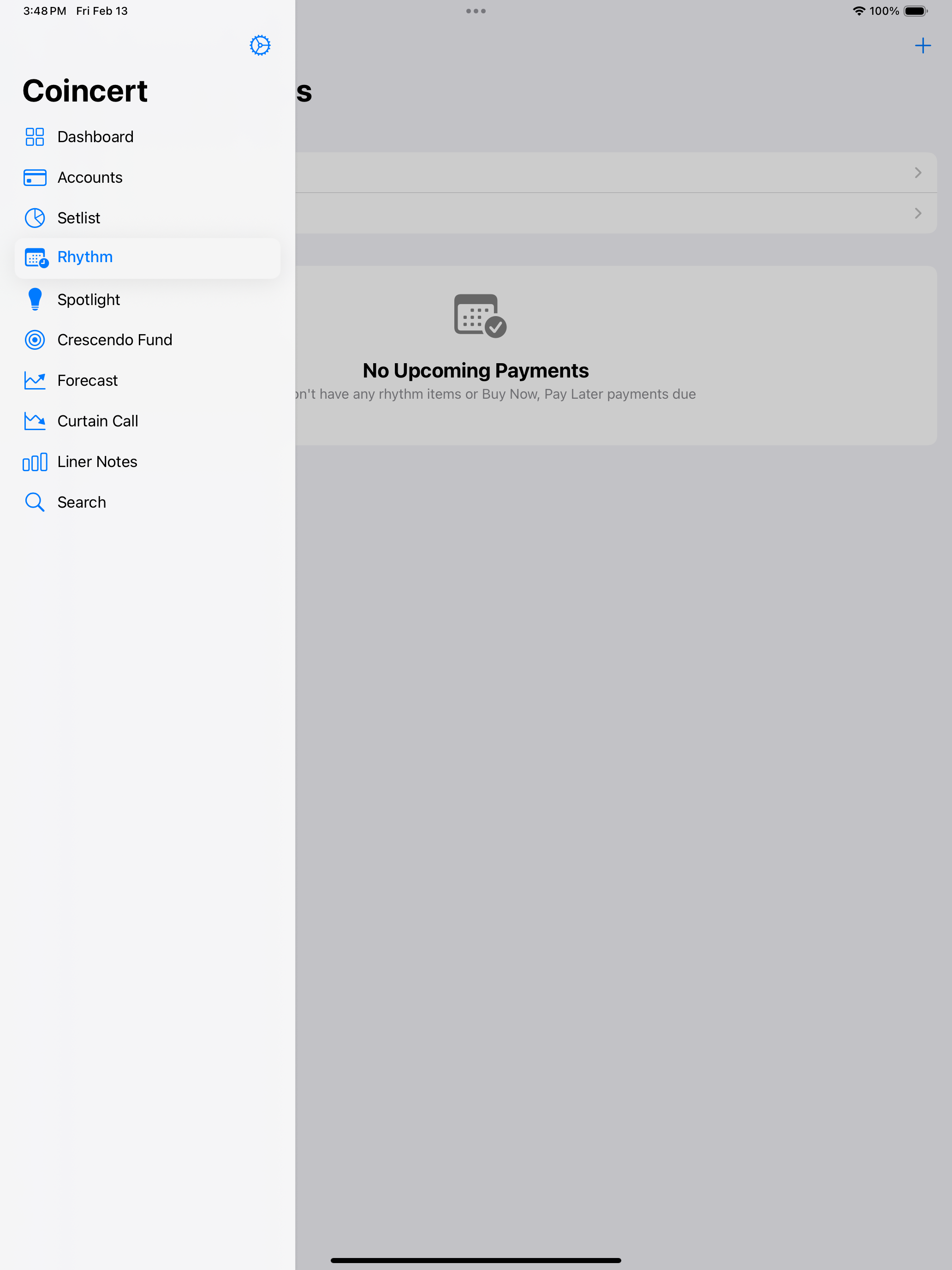
On iPad, the Rhythm screen uses a split-view layout with sidebar navigation on the left and recurring payment tracking on the right.
What Rhythm Tracks
Each Rhythm item represents a single recurring payment. This includes things like:
- Rent or mortgage payments
- Utility bills (electric, water, internet)
- Streaming subscriptions (Netflix, Spotify)
- Insurance premiums
- Gym memberships
- Loan payments
Rhythm tracks both traditional bills and subscriptions. Subscriptions get additional tracking features like price history and cancellation status.
Adding a Rhythm Item Manually
- Open the Rhythm & Payments dashboard or the Rhythm list view.
- Tap the + button.
- Choose Add to Rhythm Manually.
- Fill in the form:
- Name — The merchant or service name (e.g., “Netflix” or “Electric Company”).
- Amount — The expected payment amount.
- Frequency — How often the payment recurs. Options are:
- Weekly
- Every 2 Weeks
- Monthly
- Quarterly
- Every 6 Months
- Yearly
- Next Due Date — When the next payment is expected.
- Configure a Rhythm Reminder (see Reminders section below).
- Tap Save.
Rhythm Dashboard (Rhythm & Payments)
The dashboard is the central hub for all upcoming payments, combining both Rhythm items and Buy Now, Pay Later installments in a single view.
Summary
At the top, a summary card shows:
- Due This Month — The total dollar amount of payments remaining in the current month.
- Payment Count — How many individual payments are upcoming.
- Type Breakdown — Icons showing how many are recurring bills vs. BNPL installments.
Payment Groups
Payments are organized into time-based sections:
- Overdue — Payments past their due date, flagged in red.
- Today / This Week — Payments due very soon.
- Later — Payments further out. This section is collapsed by default and can be expanded.
Quick Links
The Manage section at the top provides navigation to:
- All Recurring Rhythm — The full list of all Rhythm items (active and paused).
- Buy Now, Pay Later Loans — A dedicated view for BNPL tracking.
Tap-to-Enter Payments
Tapping a payment row in the dashboard starts a matching flow:
- Coincert searches your transactions for a recent match by merchant name and amount.
- If a match is found, a confirmation sheet appears showing the existing transaction alongside the Rhythm payment. You can:
- Link to This Transaction — Connects the existing transaction to the Rhythm item and advances the due date.
- Create New Transaction — Ignores the match and creates a fresh transaction instead.
- If no match is found, you are prompted to pick an account, and Coincert creates a new transaction for you.
This flow requires at least one account to exist. If you have no accounts, an alert asks you to add one first.
Rhythm List View (All Rhythm Items)
The dedicated list view shows all Rhythm items sorted alphabetically and grouped into:
- Upcoming (Next 30 Days) — Items with a due date within the next 30 days, sorted by due date.
- All Rhythm Items — Every item regardless of due date, sorted alphabetically by name.
Bill Row Details
Each row displays:
- Merchant name (capitalized).
- Frequency label (e.g., “Monthly”, “Quarterly”).
- Due date status with color-coded urgency:
- Red — Overdue (shows “Overdue by X days”).
- Orange — Due within 3 days (shows “Due in X days” or “Due today” / “Due tomorrow”).
- Gray — Due later (shows “Due [date]”).
- Expected amount on the right side.
- Paused badge — If a Rhythm item is paused, an orange “Paused” label appears next to the name and the entire row dims slightly.
Swipe Actions
Swipe left on any row to reveal:
- Delete (red) — Permanently removes the Rhythm item.
- Pause / Resume (orange) — Toggles the item between active and paused. Paused items remain in the list but are excluded from upcoming payment calculations and the dashboard.
Rhythm Detail View
Tap any Rhythm item to open its detail view, where you can:
Edit Details
- Name — Update the merchant name. Changes sync immediately.
- Expected Amount — Adjust the payment amount.
- Frequency — Change the recurrence interval.
- Next Due Date — Move the due date forward or back.
Configure Reminders
- Remind me — Choose when to receive a notification before the due date:
- Never
- 1 day before
- 3 days before
- 1 week before
Pause Tracking
- Paused toggle — Temporarily suspend a Rhythm item without deleting it. Useful for seasonal subscriptions or bills you have put on hold.
Mark as Paid
Tap Mark as Paid to advance the due date to the next billing cycle based on the item’s frequency. For example, marking a monthly item as paid on February 15 sets the next due date to March 15. This does not create a transaction; it only updates the schedule.
Payment History
If transactions have been linked to this Rhythm item (either through automatic matching or manual linking), the Payment History section shows the 10 most recent payments with date and amount. Tap any payment to view the full transaction. If more than 10 payments exist, a note indicates how many additional payments are on file.
Recurring Suggestions (Auto-Detection)
Coincert analyzes your transaction history to detect patterns that look like recurring payments. This saves you from manually entering bills you are already paying.
How It Works
- Open the Rhythm list or dashboard.
- Tap the + button, then choose View Suggestions.
- Coincert scans your non-recurring transactions for repeating merchant/amount patterns.
- Detected patterns appear in a list with:
- Merchant name
- Suggested frequency (e.g., Monthly, Quarterly)
- Average amount across matching transactions
- Confidence level — High (green, 90%+), Medium (orange, 75-90%), or Low (gray, below 75%)
- Number of matching transactions
- Next expected date (if calculable)
Adding a Suggestion as a Rhythm Item
- Find the suggestion you want to track.
- Tap Add to Rhythm.
- The Add form opens pre-filled with the detected merchant name, average amount, suggested frequency, and predicted next due date.
- Adjust any values if needed and tap Save.
When you save a suggestion, all of its matching transactions are automatically flagged as recurring and linked to the new Rhythm item. The system also calculates an appropriate tolerance range based on the variance in historical amounts, so future transactions with slightly different amounts still match.
Dismissing Suggestions
If a detected pattern is not actually a recurring bill, tap Dismiss to hide it. Dismissed suggestions do not reappear during the current session.
Refreshing
Tap the refresh button in the toolbar to re-analyze your transactions. New transactions added since the last scan may produce new suggestions.
Payment Types
Rhythm items can represent different kinds of recurring payments:
| Type | Description |
|---|---|
| Fixed | The amount is the same every cycle (e.g., Netflix subscription at $15.99/month). |
| Variable | The amount changes each cycle (e.g., electric bill). The expected amount serves as an estimate. |
| Subscription | A special type of recurring payment with additional tracking for price changes, cancellation status, and monthly equivalent calculations. |
For variable payments, the tolerance field determines how much the actual transaction amount can differ from the expected amount and still be auto-matched. When created from a suggestion, tolerance is calculated as 1.5 times the largest variance seen in historical transactions (with a minimum of $1.00).
Subscription-Specific Features
Rhythm items marked as subscriptions track:
- Price history — A log of detected price changes over time, including the date, old amount, new amount, and percentage change.
- Cancellation URL — An optional link to the service’s cancellation page.
- Status — Active, Cancelled, Possibly Cancelled, or Paused.
- Monthly equivalent — For non-monthly subscriptions, this calculates the effective monthly cost (e.g., a $120/year subscription shows as $10/month).
Editing a Rhythm Item
From the detail view you can change:
- Name, amount, frequency, and next due date.
- Reminder timing.
- Pause/resume state.
All changes save automatically and sync across your devices via iCloud.
Deleting a Rhythm Item
There are two ways to delete:
- Swipe to delete — In the list view, swipe left on the item and tap Delete.
- From the detail view — Tap Delete Rhythm at the bottom, then confirm in the dialog.
When you delete a Rhythm item:
- The item is permanently removed.
- Any transactions previously linked to it have their recurring flag cleared, but the transactions themselves are not deleted.
Platform Differences
iPhone / iPad
- The amount field shows a numeric keypad.
- The Rhythm list uses large title navigation.
- Swipe actions are available for quick pause/delete operations.
- Date pickers use the native iOS date wheel.
Mac
- The amount field uses a standard text field.
- Swipe actions are replaced by right-click context menus.
- Date pickers use the macOS date picker control.
- The dashboard and list views adapt to the wider window layout.