Settings
The Settings screen is the central hub for configuring Coincert’s behavior, security, sync, notifications, and data management.

Configure appearance, security, Harmony Sync, notifications, family sharing, bank connections, and data management.
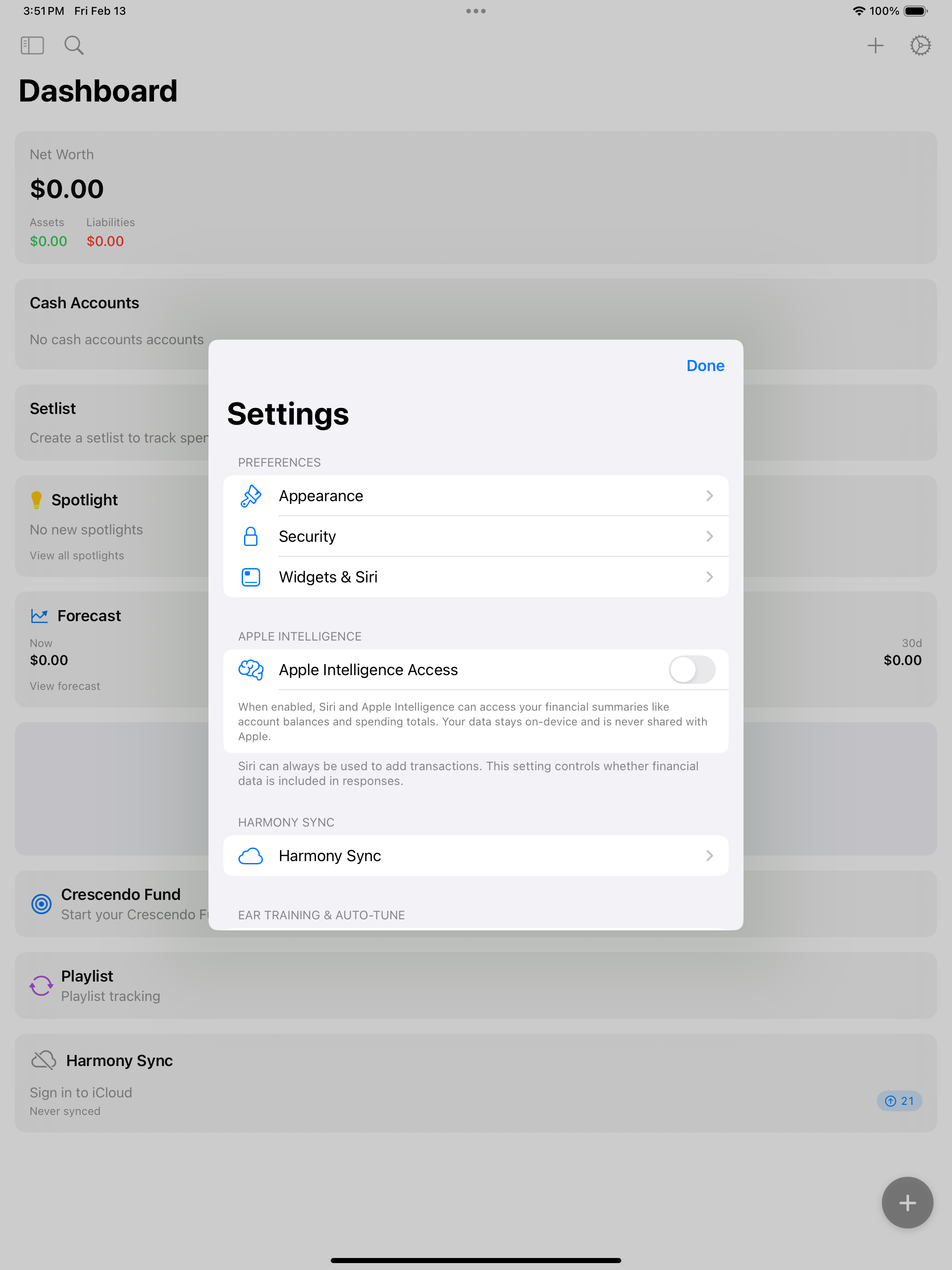
On iPad, the Settings screen uses a split-view layout with sidebar navigation on the left and the full settings panel on the right.
Accessing Settings
iPhone iPad: Tap the gear icon in the top-right corner of the Dashboard toolbar.
Mac: Open Settings from the Coincert menu bar (Coincert > Settings) or use the keyboard shortcut.
Sections Overview
Settings is organized into the following sections, listed in display order:
| Section | Purpose |
|---|---|
| Preferences | Appearance and Security (Stage Door, The Vault) |
| Harmony Sync | iCloud synchronization settings |
| Ear Training & Auto-Tune | AI categorization behavior and learned rules |
| Notifications & Celebrations | Notification preferences and celebration animations |
| Subscription | Bank sync subscription status and management |
| Family & Social | Group sharing setup and management |
| Privacy & Safety | Account privacy, data protection, shared access management, and support resources |
| Bank Integration | Connected bank accounts |
| Data | Categories, Tags, Payees, Rename Rules, Ear Training Intelligence, Duplicates, Export, Backups |
| Backstage | Beta/developer tools (TestFlight and debug builds only) |
| About | App version and credits |
| Legal | Privacy Policy and Terms of Service |
Preferences
Appearance
Choose how Coincert looks on your device. Three options are available:
- System — follows your device’s Light/Dark Mode setting
- Light — always uses the light color scheme
- Dark — always uses the dark color scheme
Security: Stage Door
Stage Door is Coincert’s biometric authentication gate. When enabled, you must verify your identity each time you open the app.
How it works:
- On devices with Face ID, Stage Door uses Face ID.
- On devices with Touch ID, Stage Door uses Touch ID.
- On devices without biometric hardware, Stage Door is not available. Your data is still protected by your device passcode.
Enabling Stage Door:
- Navigate to Settings > Security.
- Toggle Require Face ID (or Require Touch ID, depending on your device).
- Verify your identity when prompted to confirm.
If the verification fails during setup, Stage Door remains disabled.
Disabling Stage Door:
Toggle the switch off. No additional verification is required to disable it.
Security: The Vault
The Vault section shows the current status of your data storage and encryption.
- Data Storage: Displays “On Device Only” — all financial data is stored locally on your device.
- Privacy note: No data is sent to external servers. When Harmony Sync is enabled, sensitive fields are encrypted before leaving your device. See the Harmony Sync documentation for details on what is encrypted and how.
Harmony Sync
The Harmony Sync section in Settings provides access to iCloud synchronization configuration and diagnostics.
Tap Harmony Sync to open the full sync settings screen. For complete documentation on how sync works, status indicators, troubleshooting, and what data syncs, see Harmony Sync.
Ear Training & Auto-Tune
Ear Training & Auto-Tune is Coincert’s on-device intelligence system for automatic transaction categorization. Ear Training learns from your corrections over time. Auto-Tune applies those learned patterns to automatically assign categories to new transactions.
Confidence Threshold
The confidence threshold controls how certain Auto-Tune must be before it automatically assigns a category to a transaction. You can adjust this slider between 70% and 95%.
| Range | Behavior |
|---|---|
| 70-75% (lower) | More automatic — Auto-Tune assigns categories more often, but may occasionally get them wrong |
| 80-85% (balanced) | Auto-Tune handles confident predictions; you review uncertain ones |
| 90-95% (higher) | More manual — you review most transactions yourself |
The default threshold is 85%.
Learned Rules
Tap Learned Rules to view and manage the categorization rules that Auto-Tune has built from your corrections.
What you see for each rule:
- The merchant pattern (the name Auto-Tune looks for)
- The category it maps to (with icon and color), or split percentages if it is a split rule
- The number of corrections that formed the rule
- When the rule was last used
Managing rules:
- Swipe left on any rule to delete it. Auto-Tune will forget that pattern entirely.
- You can re-teach Auto-Tune by correcting similar transactions again — after 2-3 consistent corrections, it creates a new rule.
- Rules cannot be created manually. They are only learned from your corrections.
iPhone: An Edit button appears in the toolbar when rules exist, enabling bulk deletion.
How Auto-Tune Works
All processing happens entirely on your device. Transactions are never sent to cloud services for categorization.
Auto-Tune uses a tiered classification approach:
- Learned rules first — your personal corrections take highest priority
- Built-in patterns — known merchant-to-category mappings
- Machine learning — for unknown merchants that do not match any pattern
When you correct a category that Auto-Tune assigned, it learns from the correction. After 2-3 similar corrections for the same merchant pattern, Auto-Tune creates a permanent rule.
Notification Preferences
Configure how and when Coincert sends you notifications.
Permission
Before any notifications can be delivered, you must grant permission. If notifications are disabled, a prompt appears with an Enable Notifications button. You can also manage permissions in your device’s Settings app under Coincert > Notifications.
Delivery Mode
Choose between two delivery modes:
| Mode | Behavior |
|---|---|
| Proactive | Receive push notifications as events occur, even when the app is closed |
| On Open Only | Alerts appear only when you open the app — no push notifications are sent |
Marquee (Important Alerts)
Marquee alerts notify you about things that need immediate attention. In Proactive mode, all Marquee alerts are always on and cannot be individually disabled.
| Alert | Description |
|---|---|
| Setlist Exceeded | A Setlist (budget) has gone over its limit |
| Off-Key Alerts | Potentially fraudulent or unusual spending detected |
| Rhythm Reminders | Upcoming Rhythm (bill) due dates approaching |
Informational Alerts
Non-urgent notifications about trends and milestones. Toggle the master switch to enable or disable all informational alerts at once.
When enabled, the following sub-categories are active:
- Setlist Approaching — a Setlist is getting close to its limit but has not exceeded it yet
- Pitch Alerts — price changes detected for recurring expenses
- Crescendo Fund Milestones — savings goal milestones reached
Coaching Notes
Encouraging messages from your family financial coaching system. These can be toggled independently.
Playbill (Weekly Digest)
The Playbill is a weekly summary of your spending with trend comparison to previous weeks.
When enabled, you can configure:
- Day — which day of the week the Playbill is delivered
- Time — what hour of the day it arrives
Daily Notification Limit
Set the maximum number of notifications Coincert can send per day, from 1 to 10. High-priority Marquee alerts bypass this limit and are always delivered.
Subscription
The Subscription section shows the status of your bank sync subscription and provides controls for managing it.
iPhone Mac: Navigate to Settings > Subscription.
Status
When you have an active subscription, the status section displays:
- Bank Sync: Active — a green checkmark confirming automatic bank sync is enabled
- Renews — the next renewal date for your subscription
- Manage Subscription — opens the Apple Subscriptions management page where you can change plans or cancel
When you do not have an active subscription, the section displays:
- Bank Sync: Not Subscribed — indicating bank sync is unavailable
- Subscribe — opens the paywall to choose a plan
Subscription Tiers
All three tiers belong to the same subscription group and are mutually exclusive. Upgrading or downgrading takes effect at the next billing cycle.
| Tier | Price | Details |
|---|---|---|
| Monthly | $4.99/month | Standard auto-renewable subscription |
| Annual | $39.99/year | 33% savings compared to monthly |
| Family | $7.99/month | Supports up to 6 members via Apple Family Sharing |
What the Subscription Unlocks
A subscription is required to connect bank accounts via Plaid for automatic transaction sync. Subscription benefits include:
- Real-time transaction sync from connected banks
- Automatic balance updates
- Unlimited bank account connections
Free Alternatives
All other features remain fully available without a subscription:
- FinanceKit — Apple Card and Apple Savings sync via the system FinanceKit framework (iOS 17.4+)
- Manual entry — add transactions by hand
- File import — import transactions from CSV and OFX files
- Budgets, reports, and family groups — all organizational and social features
Restore Purchases
Tap Restore Purchases to sync your subscription status from the App Store. This is useful when switching devices or reinstalling the app. StoreKit 2 handles subscription persistence and iCloud sync automatically, so restoration is typically only needed in edge cases.
Family & Social
Manage group sharing. If you have not set up any groups, this section shows “Set Up Group Sharing.” If you have active group memberships, it displays the count (e.g., “Groups (2)”).
iPhone Mac: Family & Social features work on both platforms. Group creation and management require iCloud.
Tapping Family & Social opens the Family Dashboard, a dedicated hub for managing your family’s finances. The dashboard provides:
- Joint Accounts (parents only) — share accounts with your partner.
- Children (parents only) — view child members with spending oversight tools.
- Family Budgets — shared budgets tracked across all group members.
- Shared Expenses — settlements and expense splits.
- Family Settings — members, coaching, invites, and sharing configuration.
Key Family Features
| Feature | Description |
|---|---|
| Joint Accounts | Designate personal accounts as joint. Both parents see balance and transactions. |
| Spending Limits | Set weekly/biweekly/monthly spending caps for children with alert thresholds at 80%, 100%, and over budget. |
| Allowances | Configure recurring allowances with delivery via transaction or budget allocation. |
| Account Access | Grant children read-only access to specific accounts. |
| Coaching | Send AI-softened financial guidance messages to family members (iOS only). |
| Shared Budgets | Track collective family spending against limits by category. |
| Split Expenses | Divide costs using equal, percentage, or custom splits. |
| Settlements | Track who owes whom and mark debts as settled. |
For complete documentation on all family group features, see Family Groups.
Privacy & Safety
The Privacy & Safety screen provides tools for managing account privacy, data protection, shared access, and confidential support resources. It is accessible from Settings on both iOS and macOS.
iPhone Mac: Navigate to Settings > Privacy & Safety.
Account Privacy
- Biometric Lock — links to the Security Settings screen where you can enable Stage Door (Face ID / Touch ID).
- Hide Balances on Home — toggle to hide account balances on the Dashboard (coming soon).
Data Protection
- End-to-End Encryption — displays a green checkmark confirming that your financial data is encrypted before syncing to iCloud via Harmony Sync.
- Export Transaction History — generates a CSV file containing all your transactions. The CSV includes: Date, Payee, Amount, Category, Account Name, and Notes. On iOS, a share sheet is presented. On macOS, a save dialog appears.
Shared Access
This section only appears if you belong to a family group. For each group, it shows:
- Group name and joint account count (e.g., “2 joint accounts”).
- View Shared Accounts — navigates to a list of all active joint account grants with permission level and grant date. Shows an empty state (“No Joint Accounts”) if none exist.
- Disconnect — a red button that initiates a one-sided separation from the group.
Disconnecting shared access:
- Tap Disconnect next to the group name.
- A confirmation alert appears: “Disconnect Shared Access?”
- The alert message explains: “Your personal accounts and transaction history will be preserved. Joint accounts will revert to personal accounts.”
- After confirmation:
- Joint account grants are revoked.
- The group is marked as separated locally.
- Personal data (accounts, transactions, history) is preserved.
- No notification is sent to the other party. The disconnection is one-sided and local-only.
- The group row shows “Disconnected” instead of the joint account count.
Resources
Confidential support resources are available 24/7:
- National Hotline: 1-800-799-7233 (tap to call).
- Technology Safety Resources: Links to techsafety.org.
- Safety Planning Guide: Links to nnedv.org.
All links open in the device’s default browser or dialer.
Data Management
Categories
View, create, edit, and delete transaction categories.
Tags
Manage tags that can be applied to transactions for flexible organization.
Payees
View and manage the list of payees used across your transactions.
Rename Rules
Create rules that automatically rename messy bank-provided payee names (like “AMZNMKTP US2K4X7”) into clean names (like “Amazon”).
Ear Training Intelligence
Manage merchant disambiguation rules. When a single payee name maps to multiple real-world merchants (e.g., “SQUARE” could be many different businesses), Ear Training Intelligence helps Coincert tell them apart.
Duplicates
Review and resolve potential duplicate transactions detected by Echo Detection.
Export
Export your financial data in multiple formats.
| Format | Description |
|---|---|
| CSV | Comma-separated values, one file per account, zipped together |
| OFX | Open Financial Exchange format, compatible with most financial software |
| Printable PDF statements | |
| Full Backup | Complete JSON export of all 26 data types as a .coincert file |
The Full Backup format exports everything — accounts, transactions, budgets, debt plans, BNPL loans, learned rules, family groups, and more. See Backup & Recovery for details.
Backups
Create, view, and restore point-in-time snapshots of your entire database. Backups are stored locally on this device and capture all financial data at the moment they are created.
- Create Backup Now — take a snapshot with a custom label
- Restore — replace current data with a previous snapshot (auto-backup of current state is created first)
- Delete — remove old snapshots you no longer need
Coincert also creates automatic backups before destructive operations like “Reset Sync & Refetch All” and “Delete ALL Data.”
For complete documentation, see Backup & Recovery.
Backstage
Backstage is Coincert’s developer and beta testing toolkit. It is only visible in TestFlight builds and debug builds — it does not appear in App Store releases.
Warning: Bulk delete actions permanently delete data. However, an automatic backup is created before “Delete ALL Data” so you can recover if needed.
TestFlight Tools
| Action | Description |
|---|---|
| Fresh Start on Next Launch | Toggle this on, then close and reopen the app. Creates an auto-backup, wipes local data, resets sync state, and simulates a new-device experience. iCloud data re-downloads automatically. See Backup & Recovery for details. |
Bulk Delete Operations
| Action | What it deletes |
|---|---|
| Delete All BNPL Loans | All Buy Now Pay Later loans and their installments |
| Delete All Recurring Rules | All recurring transaction detection rules |
| Delete All Transactions | All transactions and split items |
| Delete All Accounts | All accounts, transactions, and split items |
| Delete All Setlists | All Setlists (budgets), alerts, and rollovers |
| Delete All Curtain Call Plans | All debt payoff plans, debt items, and scenarios |
| Delete All Categories | All categories |
| Delete All Tags | All tags |
| Delete All Learned Rules | All Auto-Tune learned categorization rules |
| Delete All Rename Rules | All payee rename rules |
| Delete ALL Data | Everything listed above, plus saved filters and duplicate pairs. Auto-backup created first. |
Each action requires confirmation before executing. After deletion, the Backstage screen dismisses automatically so the app can refresh its data.
Platform Differences
| Feature | iOS / iPadOS | macOS |
|---|---|---|
| Access | Gear icon on Dashboard toolbar | App menu or keyboard shortcut |
| Stage Door | Face ID or Touch ID | Touch ID (on supported Macs) |
| ADP Settings link | Direct link to iOS Settings | Not available (use System Settings manually) |
| Learned Rules editing | Edit button + swipe to delete | Swipe to delete |
| Family Dashboard | FamilyDashboardView (card layout) | FamilyDashboardViewMac (adapted layout) |
| Coaching Messages | Full AI-softened compose (Foundation Models) | Not available (iOS only) |
| Privacy & Safety | Full: separation, export, resources | Full: separation, export, resources |
| Navigation | Push navigation within a sheet | Push navigation in sidebar detail |